
- 01 / processChoose
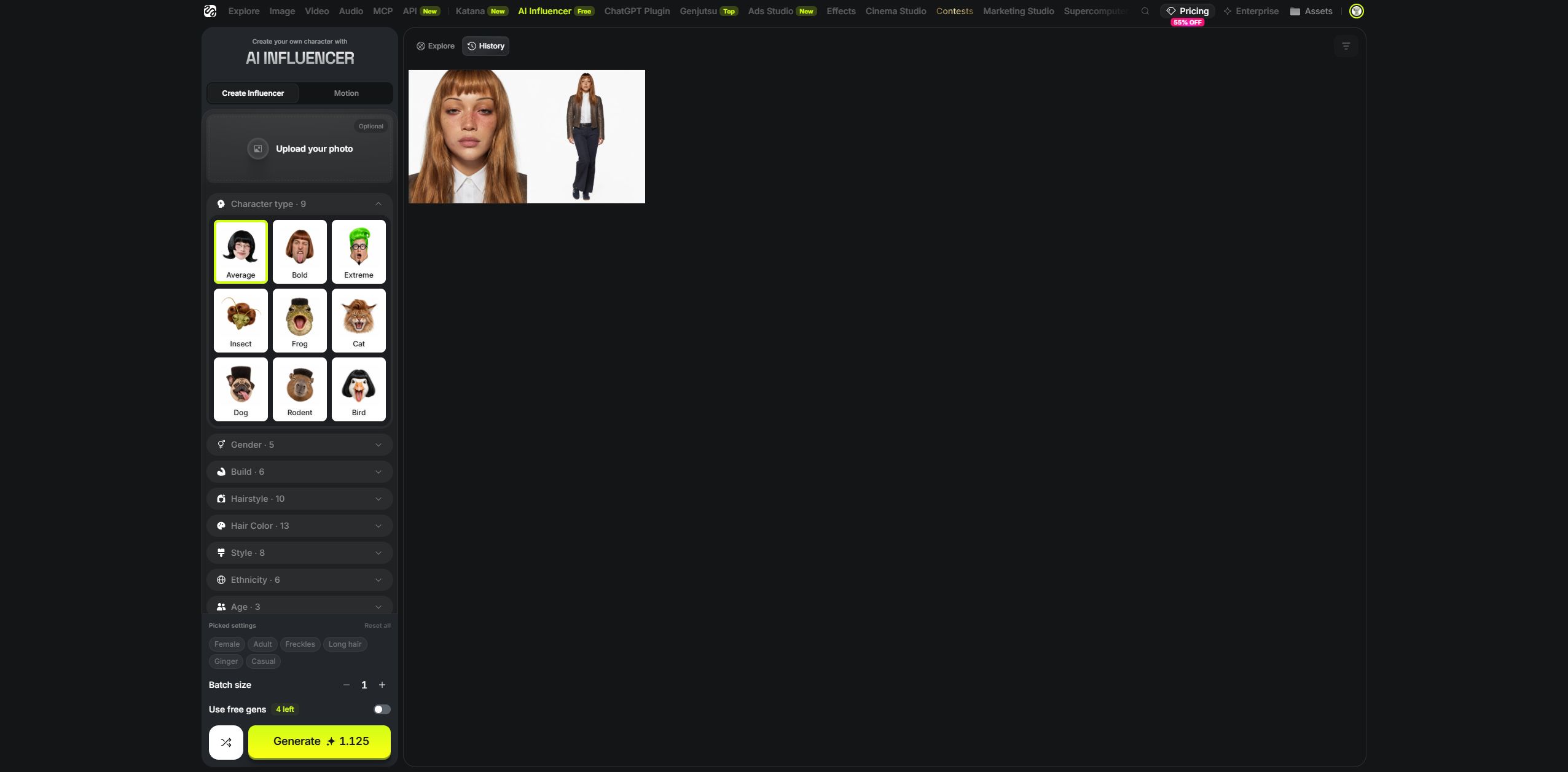
Choose a recognisable look with the appearance controls; our example uses no uploaded photo.
- 02 / processCheck
Keep batch size at one and check the available allowance.
- 03 / processGenerate
Inspect your portrait and full-body view in History.
- 04 / processSave
Download the original PNG and keep the settings for your next idea.
Make a character you can build your content around
Higgsfield is a good place to start if you want an AI character and your laptop is not built for local AI. The generation runs online: you choose the appearance in your browser, then download the finished image. There are no model weights, Python environments or graphics-card drivers to configure for this character builder.
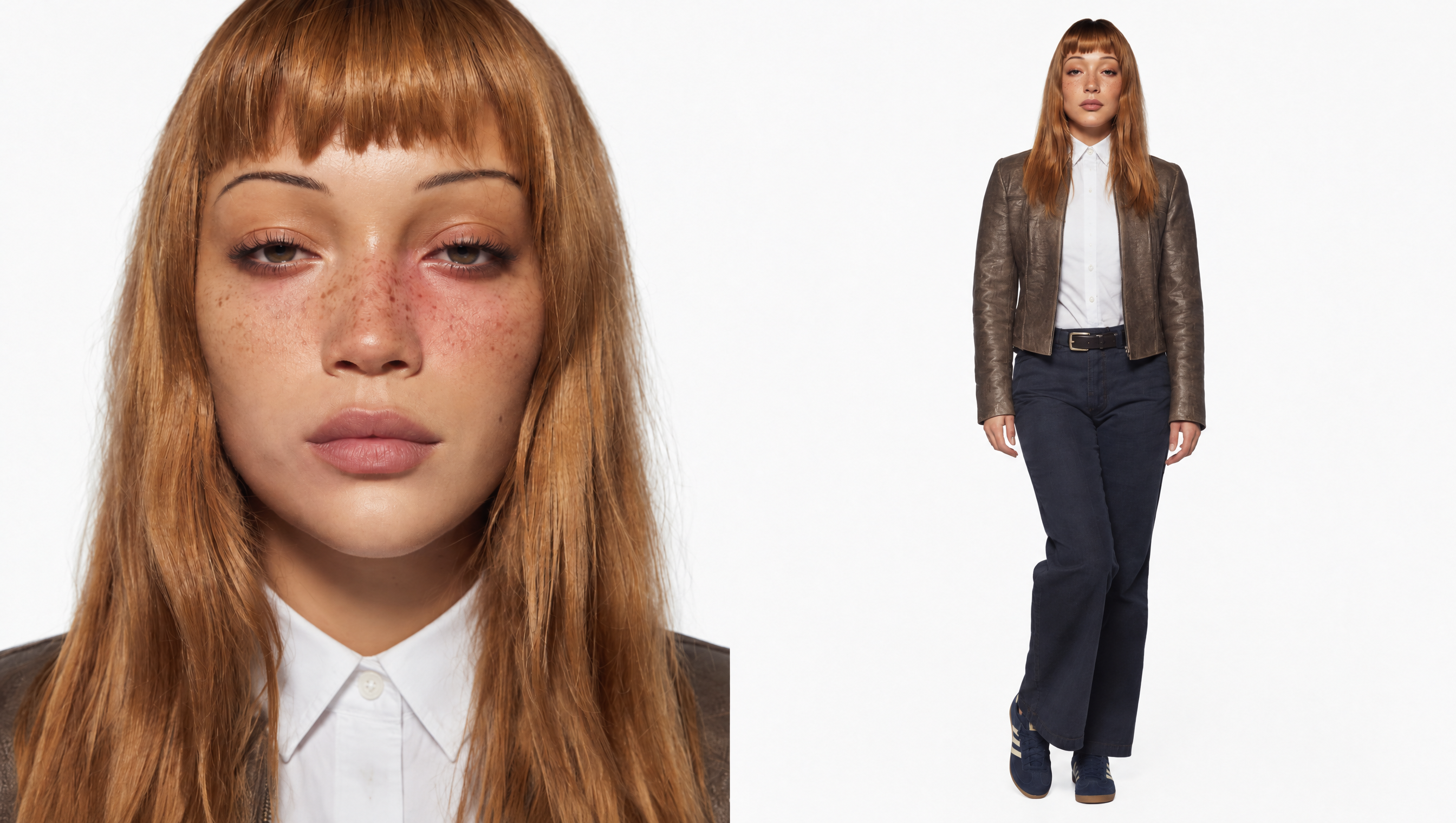
We made the fictional adult character above on 12 October 2026, using Higgsfield's AI Influencer Studio. Long ginger hair, freckles and a casual style became a character sheet with a portrait and a full-body view. We used one free character attempt and downloaded the original 2,688 × 1,520 PNG, then animated that sheet with Higgsfield Lite. You can see both results, use our exact choices and follow the same steps below.
Think about what you would make with your own character: a fictional host for short tutorials, a character-led Instagram series, a fashion mood board or the cast of a small visual story. Start with a face and look you like, then develop the content around it.
Create your first character in Higgsfield — affiliate link
Why Higgsfield is worth trying
The first step is visual. You choose appearance controls rather than writing a long prompt and hoping it covers every detail. Hair, age, features and style are easy to work through, and Picked settings shows what you have chosen. That makes the builder approachable even if this is your first AI project.
You get a face and a full-body look together. Our sheet gives us a close view of the character's expression and freckles, plus her outfit and silhouette. Both are useful when deciding how a fictional creator should look.
There is room to take the idea further. The result page connects to Genjutsu for motion, and Higgsfield documents saved elements for reusing character references in its connected tools. You can begin with a still image and explore a video workflow when you are ready.
Your PC does not supply the generation GPU. This is the main advantage for a basic laptop, a computer with little VRAM or anyone who would rather spend time on the character than installing models. You still need a working browser, internet access and enough storage for your uploads and downloads.
For this guide, the first goal is simple: create one character you want to keep, save the original and know how to return to it.
Before you start
Create an account and have a small character idea in mind. We used an entirely fictional adult and left the photo upload empty. If you use a real person's photograph or a performance clip later, get the necessary permission and media rights first.
Our account offered five free character attempts. Enabling Use free gens changed the Generate button to Free; after our successful attempt, four remained. In credit mode, the same batch-one character button showed 1.125 credits.
Check the offer shown in your own account before generating. Free character allowances, subscription credits and video costs are separate; the current Generate button is the useful number to read. Keep batch size at one while you find your character.
1. Give your character a direction
Choose a purpose and a few recognisable details. A calm fictional photography presenter might have casual clothes, a warm expression and distinctive hair. A comedy character might need a more exaggerated silhouette. This is where your idea gives the settings a direction.
To follow our example, use these choices:
| Control | Our selection |
|---|---|
| Character type | Average |
| Gender | Female |
| Age | Adult |
| Hairstyle | Long hair |
| Hair Color | Ginger |
| Features | Freckles |
| Style | Casual |
| Batch size | 1 |
| Uploaded reference photograph | None |
| Other appearance fields | Unselected; provider defaults |
On a small screen, scroll the table sideways to see both columns. Casual sets the overall style. Higgsfield chose the jacket, white shirt and dark trousers in our result; we did not specify those garments individually.
2. Build the character in your browser
- Open Higgsfield and start your character — affiliate link. Sign in and choose AI Influencer from the navigation.
- Select Create Influencer. You will use the Motion tab later if you want video.
- Leave Upload your photo empty to build a fictional person from scratch.
- Set Character type to Average for our example. Bold and Extreme offer more unusual appearance directions when you want to explore another look.
- Apply the remaining selections from the table, then check Picked settings. Leave the other fields unselected for this first version.
Our tested October 2026 builder uses menus, so there is no character prompt to paste. Once you understand the controls, Randomize is another way to explore ideas; keep our selections for your first run if you want to follow this recipe.
3. Generate and choose the result you want to keep
- Keep Batch size at one.
- If Use free gens is offered, enable it and confirm the button says Free. Otherwise check the displayed credit cost and your available balance.
- Select Generate once and wait for the completed result in History.
- Open it and select See all beside Character Parameters to review the choices behind the image.
- Look closely at the portrait and full-body view. Check the eyes, teeth, hands, feet, clothing edges and proportions, then decide whether the character fits your idea.
Our result carried through the long ginger hair and freckles, with a casual outfit that works as a starting look for a fictional presenter. Open the original below and inspect the details yourself.
4. Save the character and its settings
- Choose Download in the result viewer and let the browser finish saving.
- Open the file from your browser's download folder and inspect the full sheet. Our native export was a 2,688 × 1,520 PNG, approximately 5.04 MB.
- Save a settings note beside it: date, appearance choices, free or credit mode and what you like about this version.
- Give the image a clear name such as
character-v1-sheet.png. Keep this original when making smaller previews or social crops.
Our original export reopened successfully. You can inspect it above and download our exact settings. The page preview is a smaller delivery copy; the face and clothing have not been retouched.
5. Develop a recognisable character
A saved reference gives your next image a concrete starting point. Higgsfield documents Create element and Assign to element in the result menu for keeping reusable references; check their availability in your account and chosen tool. Recreate is useful for another take with saved settings, while reference-based tools are the better place to explore a continuing character.
Build a small series gradually: try a new background, then a pose, then an outfit. Compare the face shape, hairline, freckles and proportions against your original after each change. Keep the images that still feel like your character and use those as your reference set.
Soul ID is a separate identity-training option. Its help describes 20–80 varied photographs and selecting the trained identity in supported tools. Use authorised original inputs and read the current Soul ID instructions. Higgsfield's terms restrict training AI models with its generated outputs; older generated-portrait training tutorials need clarification or written permission before you follow them.
6. Animate your character sheet with Higgsfield Lite
Here is the next step we actually made: a short, silent animation from the saved character sheet. It keeps the portrait and full-body layout, with small changes in pose and expression. It is a useful first movement test before designing a single-frame social clip.
- Open Higgsfield's Video workspace and choose Higgsfield Lite.
- Use the General preset and add your original character sheet as the starting image. Leave the optional end frame empty.
- Keep Enhance off and enter the prompt we used:
Animate this two-panel character sheet with subtle natural movement. Keep the portrait on the left and the full-body view on the right. Preserve the same adult ginger-haired woman, freckles, face, jacket and proportions. Gentle blinking and light hair movement, calm breathing, locked camera, neutral background, no new people or text.
- Set the requested quality to 720p, duration to 5 seconds, steps to 30 and batch size to one. Our first run used Random for the seed and returned 350994; enter that number if you want to reuse the seed. These settings belong to our Lite test, rather than every video model.
- Read the Generate quotation. Ours showed five credits; the Free Plan credit balance changed from 10 to 5 after this completed generation. That is separate from the free character allowance used earlier. Check your own account's current quotation before confirming.
- Generate once, then play the completed result in History from start to finish.
- Download the native MP4 and reopen it outside Higgsfield. Our export was 1,264 × 720, 30 fps and 5.37 seconds, approximately 2.08 MB, with no audio. Keep the original with your input, prompt and settings.
Our clip is a two-panel character test, rather than a finished social post or dance video. The layout carries through, but the lighting becomes noticeably brighter around three to four seconds. For a steadier look, a useful next experiment is to add a specific lighting instruction and compare another take; check its quotation before rerunning. For a portrait-format post, prepare a single character crop and plan that frame separately.
Optional next step: motion transfer with Genjutsu
This is where a still character can become a performance. Turn to motion with Genjutsu opens the motion workflow with your character reference, giving you a route to a short skit, movement-led post or fictional presenter clip. The steps below follow the interface and official instructions; this Genjutsu motion-transfer route remains untested.
- Open the character and select Turn to motion with Genjutsu. Our handoff opened Motion transfer in the Motion tab with the reference ready.
- Add a reference video you own or have permission to use. The inspected interface accepts 4–30 seconds. Begin with one visible adult performer, steady lighting and a simple movement.
- Check every image reference. Presets can include an example character, so replace it with yours and remove unrelated inputs.
- If you enable the optional prompt, describe which performer to replace and what to retain. The motion brief at the end of this guide gives you a starting point.
- Choose the available quality and check the quotation again. Our inspected example selected 1080p; presets can also change inputs and settings.
- If video Use free gens is offered, check its remaining quota and any credit fallback before confirming. Choose an allowance and cost that suit this particular clip.
- After generation, watch the whole video: face, hands, foot contact, clothes, background and first/last frames. Keep the take that carries the character and movement well.
- Download and reopen the finished clip. Record its duration, resolution and actual cost. Add permitted music or captions and identify the character as AI-generated when publishing.
For a first video, one simple action is easier to judge than a montage with several cuts. Get that short scene working before planning a longer series.
Higgsfield or local AI: which fits your setup?
Choose Higgsfield if your priority is getting creative in a browser. It is particularly useful when your PC has limited graphics memory or storage, or you want hosted image and video tools in one account. Your computer displays the editor and handles media files; the provider supplies the generation hardware.
Choose local ComfyUI if you enjoy building the workflow and want control over its parts. You can choose model files, keep your own versioned graphs, work with a local file library and run compatible models without a provider charge for each generation. That freedom comes with hardware, storage, electricity and maintenance requirements.
Scroll this comparison sideways on a small screen to see all three columns.
| What matters | Higgsfield | Local ComfyUI |
|---|---|---|
| Getting started | Account and browser; hosted character controls | Installation, compatible runtime and model files |
| GPU and storage | Generation GPU supplied online; room needed for your media | Your hardware must fit the chosen model; weights can take substantial disk space |
| Images and video | Connected hosted tools; availability and cost depend on feature/account | Both are possible with suitable models and graphs; requirements differ |
| Creative control | Appearance menus, references and the tools available in your account | Model choice, graph wiring, node settings and saved versions |
| Model access | Try available hosted engines; access follows your account and plan | Choose permitted open models and retain the versions you use |
| Running several outputs | Batch/queue access and charges follow the feature and plan | Queue saved graphs or connect the local API; your hardware sets capacity |
| Files and reuse | Account library plus native downloads | Your own folders and exported workflow JSON |
| Internet and data | Online processing; uploaded references leave your device | Can work locally/offline after setup when the graph has no hosted nodes or network dependencies |
| Cost | Free allowances where offered, then quoted credits/plan access | Hardware, electricity, storage and setup; paid APIs remain separate if added |
| Maintenance | Provider maintains generation infrastructure | You maintain software, model files and compatible dependencies |
Higgsfield's plans help explains account access. ComfyUI's official README and server API describe local graphs, queues and integration. For hosted uploads, read the provider's content-handling terms when choosing references, particularly for client material.
For a beginner with a basic laptop, we would start with Higgsfield and make one character worth keeping. If the project later needs custom nodes, a specific local model or detailed graph control, you can assess that route with a clear goal in mind.
A free local route to reference editing
Local tools are a useful option if you already have compatible hardware and want to manage the whole workflow yourself. Here is a documented reference-editing route you can explore alongside the browser builder.
- Start with our first ComfyUI guide for installation, loaders, templates and image export. Its introductory model is different from the editing model below.
- Open the official FLUX.2 Klein 4B guide and its 4B distilled image-edit template.
- Follow the template's exact model requirements:
flux-2-klein-4b-fp8.safetensorsinmodels/diffusion_models/,qwen_3_4b.safetensorsinmodels/text_encoders/andflux2-vae.safetensorsinmodels/vae/. Check hardware and storage before downloading. - Use your own original or appropriately licensed reference. The publisher labels the 4B model Apache 2.0; check the licence for your exact variant and input. Keep this separate from training on Higgsfield outputs.
- Inspect both Load Image nodes: the official example begins with a handbag and a logo. For this initial character exercise, replace both with your independently owned character reference, retain the supplied connections and replace the handbag/logo prompt with one small scene change. Save the generated image, compare it with the reference, then export the workflow and retain the original input.
That is a multi-reference template with a repeated character reference. Use the local hardware explanation to assess your PC, and keeping the same AI character for the wider reference workflow.
When a paid Higgsfield plan makes sense
Once you like your character, paid access can give you more room to develop the project: a larger allowance and access to features or models restricted on your current account. Look at the specific tools you plan to use, how many image variations or clips you need and the export conditions that matter for your content.
Compare the live plan's included credits, billing period and renewal total with the quotation for a representative job. Character generation and video can have very different costs. A plan is useful when it covers the work you actually want to make; your first saved character gives you a concrete starting point for that decision.
Explore Higgsfield and choose the plan for your project — affiliate link
Questions you might hit along the way
Where do I paste the character prompt? Our October builder uses menus. Work through the appearance controls; the optional motion prompt belongs to the separate video workflow.
What if the free button disappears? Check the feature, quality, batch size and remaining quota. Review Usage and the current quotation before another generation.
How do I choose a particular outfit? Casual lets the builder choose clothing within that style. For a later reference edit, describe the garment you want and compare the face and body with the original after changing it.
What if Recreate changes the face? Use the original as a reference in a supported editing/element workflow. Saved appearance choices describe the look; compare each new take before adding it to your series. Our same-seed answer explains reproduction in more detail.
Where is my download? Check the folder selected by your browser and wait for the download to finish. Then open the PNG itself; keep the full-size original for future crops and references.
Can I use the images for my brand or client work? Higgsfield's commercial-use help permits commercial outputs under its terms. Check third-party and likeness rights, and describe the character as fictional and AI-generated. Avoid implying real product use or personal experience through a fictional presenter.
Start with one character, then give it a purpose
Pick the look, create your first sheet and save the version you like. A recurring face can give a tutorial series, fictional story or creative concept a clear visual direction. Higgsfield makes that first browser-based character step accessible without a local generation setup.
Our test: one fictional adult character generated and exported on 12 October 2026, using one free attempt; quota changed from five to four. One Higgsfield Lite animation was also generated, played and downloaded as a silent MP4, using five account credits. Soul ID, Genjutsu motion transfer, multi-scene identity reuse and local generation remain separate workflows. The original media, settings and provenance are retained in the linked assets and starter pack.
Choose a route
| Route | Cost basis | What you need | What changes |
|---|---|---|---|
| Create your character in Higgsfield — affiliate linkFree allowance or paid hosted | Our account offered 5 free character attempts; this sheet used one. Lite animation quoted 5 credits and its credit balance changed from 10 to 5. Check your own allowance and quotation. | An account, working browser, internet connection and permitted inputs. The provider supplies generation hardware. | Appearance menus, paired character views and connected motion tools. Hosted processing and feature/credit access follow your account. |
| Local ComfyUI + FLUX.2 Klein 4BFree local | No provider credit fee for local-only core-model generation; hardware, electricity, storage and setup are your costs. | Compatible PC, the exact 4B template/model components and original or licensed references. | Choose your models, graph and files; local/offline processing is possible with an appropriate setup. You maintain the workflow and runtime. |
Higgsfield links labelled affiliate are sponsored links. Other references are ordinary links. Free local software still needs hardware, storage and setup time; inspect current provider terms before paying.
Your first motion brief
Original optional Genjutsu starting brief. Our character was created with appearance menus; this motion-transfer brief remains untested.
Replace only the main adult performer with the adult character in my reference image. Keep the reference character’s ginger hair, freckles, facial structure and chosen outfit. Keep the source setting and other people unchanged. Follow the source performer’s movement and timing without adding new actions or text. Check the result for identity drift, warped hands, foot sliding and unintended background changes.Take the steps with you
Reader starter files
The guide, editable prompt, checklist, source register and a blank reproduction log. Includes exact settings and the dated execution record. The original result PNG is linked separately; no model weights or executable graph are included.
Download the starter packSources and testing status
Primary references checked 2026-10-12. Created and exported on 12 October 2026: one fictional adult character PNG and one short silent Higgsfield Lite animation MP4.
- Introducing the New AI Influencer: How It Works and What You Can Create
- How do I use AI Influencer?
- How do I create and use a Soul ID character?
- How do credits work?
- Who owns my generations, and can I use them commercially?
- Terms of Use Agreement
- Higgsfield Affiliate Program
- Pricing plans
- ComfyUI Flux.2 Klein 4B Guide
- Black Forest Labs FLUX.2-klein-4B model card
- Higgsfield: Hosted model infrastructure
- Higgsfield: Which tool should I use?
- Higgsfield: How plans work
- ComfyUI: Official README
- ComfyUI: System requirements
- ComfyUI: Server routes and queues
- ComfyUI: Wan2.2 video workflows